

Bundle Builder Lite
Bundle Builder Lite
Bundle Builder Lite is a streamlined, lightweight version of the full Bundle Builder, designed for speed and simplicity. It gets a mix-and-match bundle live with minimal setup — no advanced design options, no complex logic, just a clean, fast configuration flow.
Where It Works: Section embed (via Shopify Theme Editor).
Concept & Usage
What it is: A simplified bundle builder focused on getting an offer live quickly, with straightforward product selection, flexible discount tiers, and basic cart settings.
Best For:
Small stores that need a no-fuss bundling solution
Testing a new bundle concept before committing to the full builder
Simple mix-and-match offers that don't require multi-step flows or advanced styling
Key Simplifications
Unlike the full Bundle Builder, the Lite version keeps things focused:
Feature | Full Bundle Builder | Bundle Builder Lite |
Discounts | Fixed & Tiered | Fixed & Tiered (simplified setup) |
Layout | Full Page or Section | Section only |
Complexity | Advanced styling & logic | Minimal settings for rapid deployment |
Cart display | Multi BAP or Cart Transform | Progress bar toggle + custom button text |
How to Configure
Step 1 — Add Product
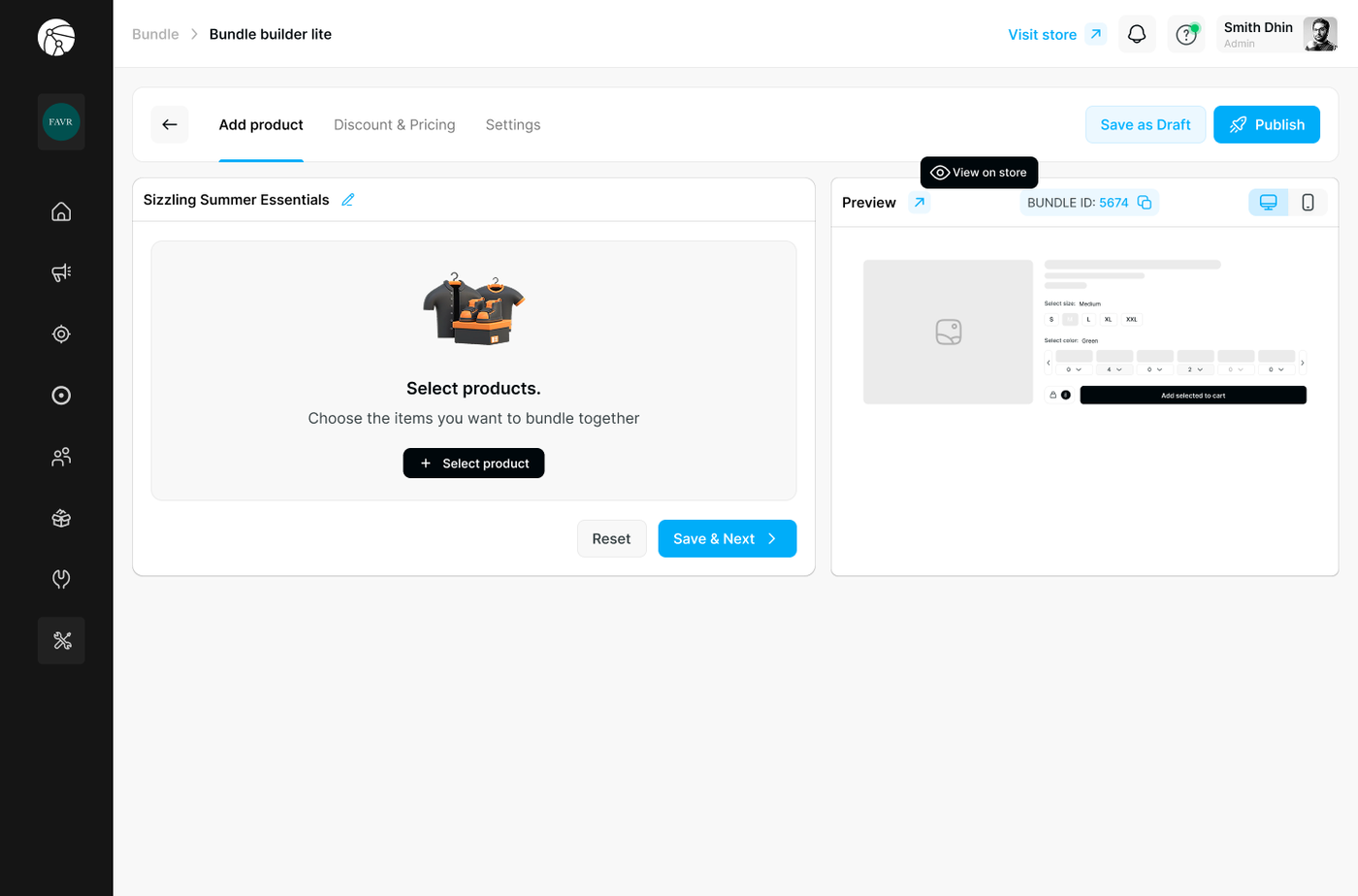
Navigate to Bundles and click Create bundle.
Select Bundle Builder Lite as your bundle type.
Give your bundle an internal name (e.g., "Sizzling Summer Essentials") — this can be edited later using the pencil icon.
Click + Select product to choose the items you want to bundle together.
Note your Bundle ID (shown in the top-right of the preview panel) — you'll need this to embed the bundle in your theme.
Click Save & Next to proceed.
Step 2 — Discount & Pricing
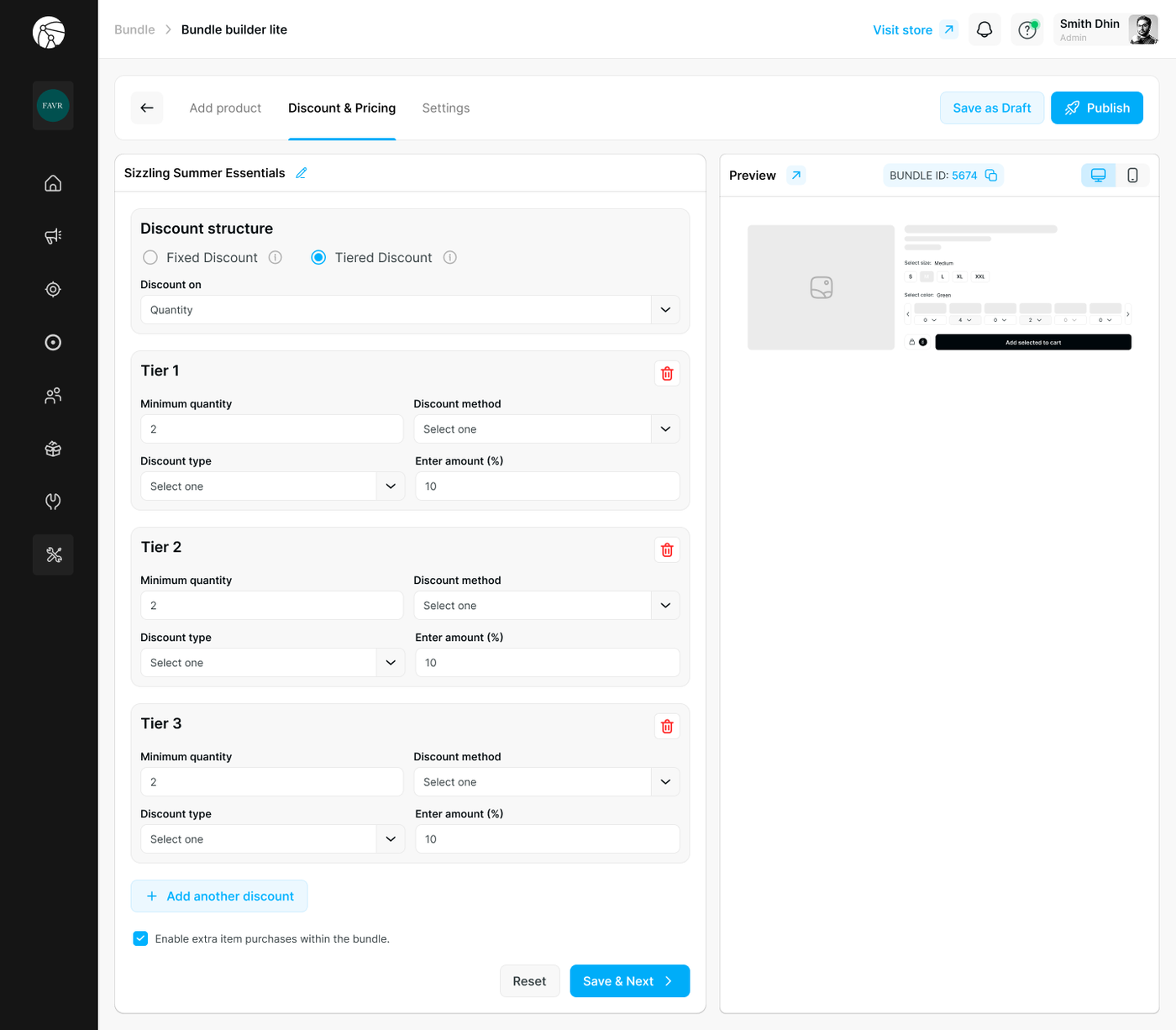
Choose how discounts are applied across the bundle:
Discount Structure
Fixed Discount — A single discount rule that applies regardless of quantity.
Tiered Discount — Progressive savings that increase as customers add more items. Set the Discount on field to Quantity to unlock tiers.
Configuring Tiers
Each tier requires:
Field | Description |
Minimum quantity | The item count at which this tier activates |
Discount method | How the discount is applied (e.g., per item or on total) |
Discount type | Percentage or fixed amount |
Enter amount | The discount value |
Click + Add another discount to add more tiers (up to as many as your strategy requires — Tier 1, Tier 2, Tier 3, etc.).
Enable extra item purchases within the bundle — Check this option to allow customers to add quantities beyond the defined bundle structure.
Click Save & Next to proceed.
Step 3 — Settings
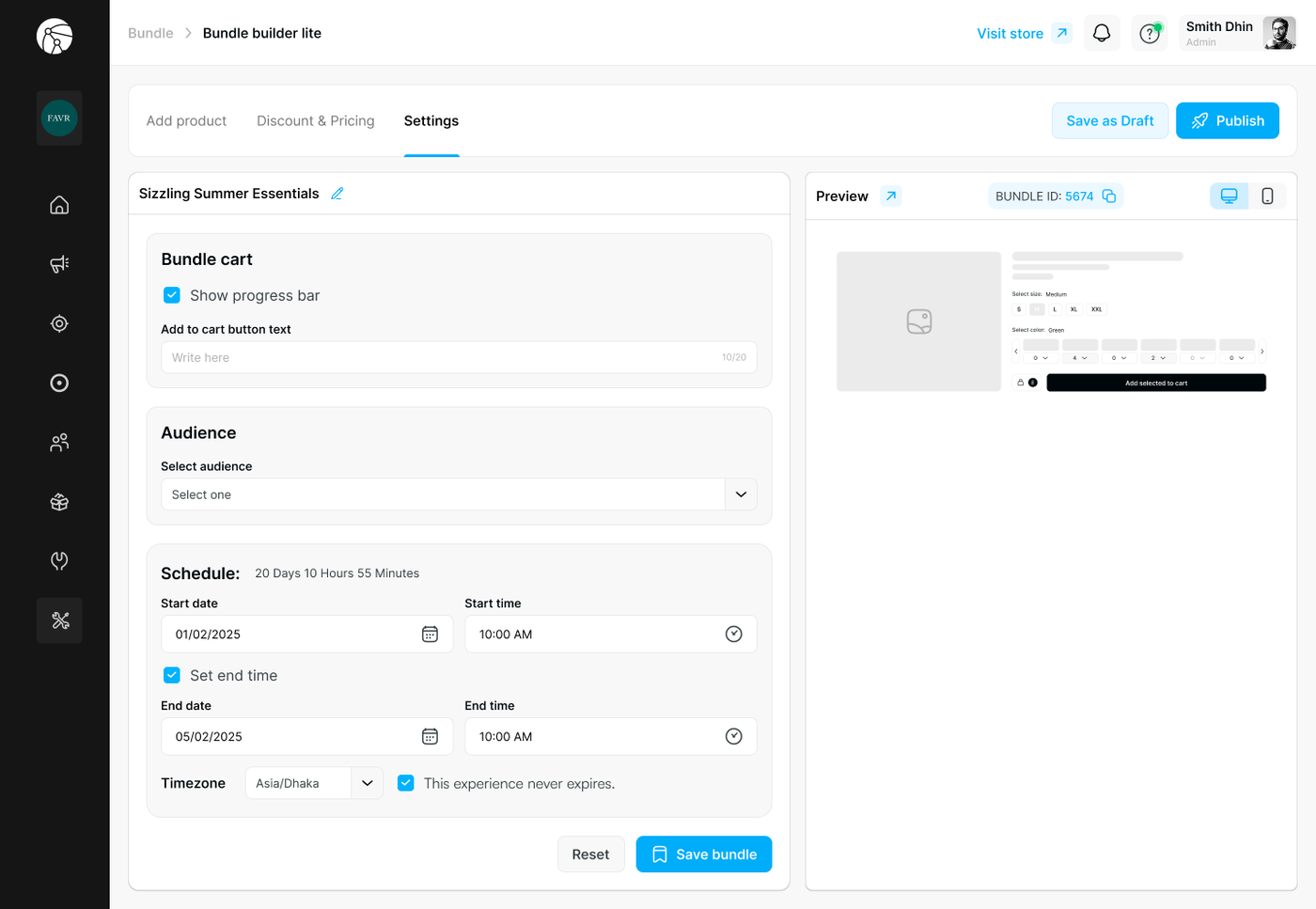
Fine-tune cart behavior, visibility, and scheduling:
Bundle Cart
Setting | Description |
Show progress bar | Displays a visual indicator of how close the customer is to completing or unlocking the next tier |
Add to cart button text | Customize the label on the add-to-cart button (max 20 characters) |
Audience
Restrict who sees the bundle by selecting a specific customer segment, or leave it open to everyone.Schedule
Set a start and end date/time to run the bundle as a limited-time offer:
Field | Description |
Start date / time | When the bundle becomes active |
Set end time | Toggle on to define an expiry date and time |
End date / time | When the bundle automatically deactivates |
Timezone | Select your store's local timezone |
Check This experience never expires if you want the bundle to run indefinitely.
Click Save bundle to finalize.
Embedding the Bundle
Since Bundle Builder Lite uses Section layout only, you need to manually embed it into your storefront:
Copy the Bundle ID from the preview panel (e.g.,
5674).Go to Shopify Admin > Online Store > Themes > Customize.
Navigate to the page where you want the bundle to appear.
Click Add section (or Add block) > Apps > Dynamatics Bundle Kit.
Set the Bundle Type to Section Bundle and paste your Bundle ID.
Click Save.
Before You Publish
Ensure the Dynamatic Bundles app embed is toggled ON in your Shopify Theme Editor, or the bundle will not display.
If you switch themes, you must re-enable the app embed and re-embed the bundle section on the new theme.
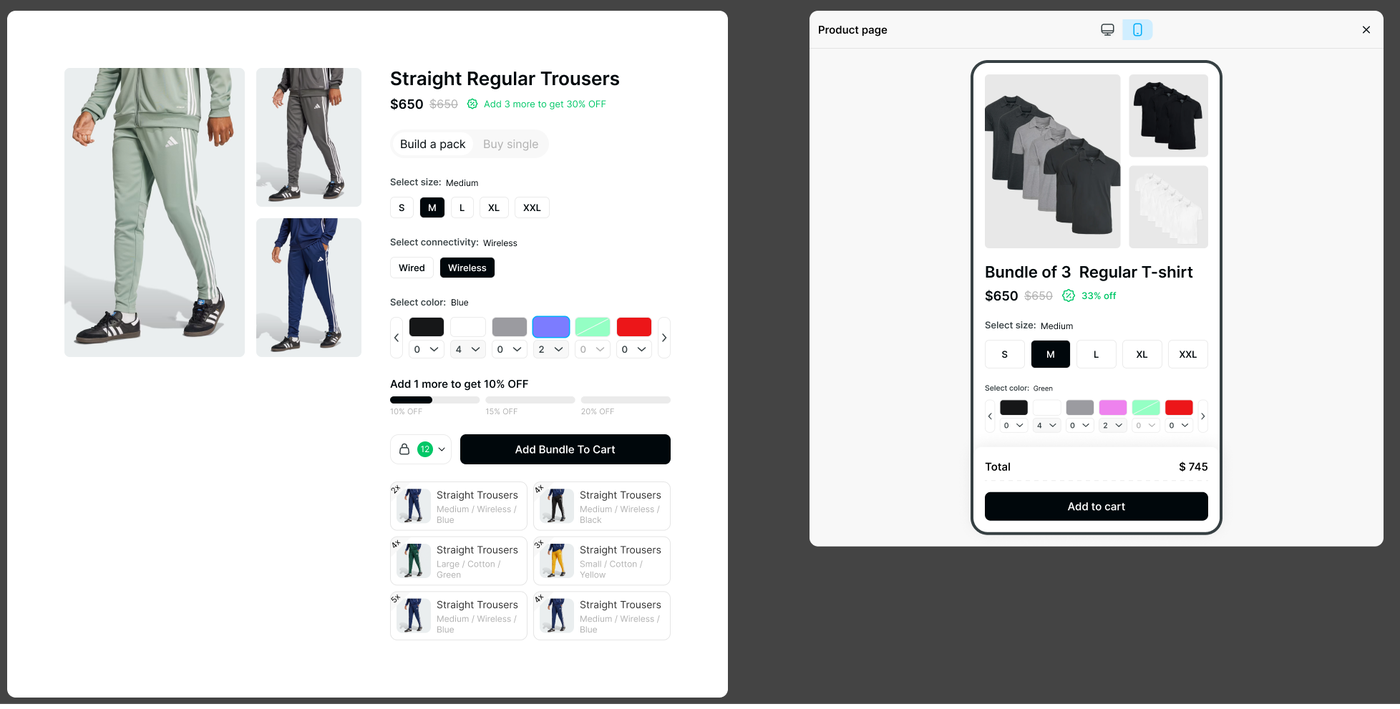
Use the Preview panel (desktop and mobile views) throughout setup to verify the bundle looks correct before going live.