

Bundle Configuration
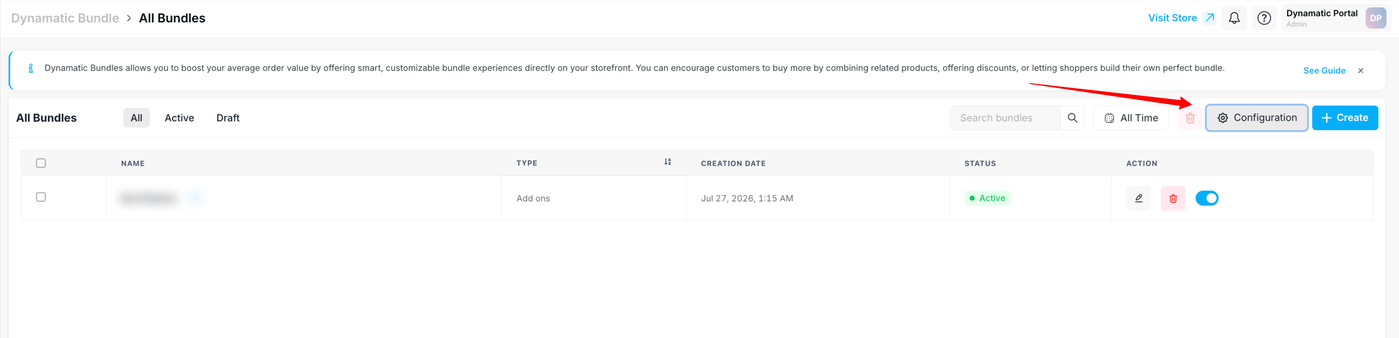
The Bundle Configuration panel is your safety net. Dynamatic is built to work out of the box — in most cases the app automatically detects where to render your bundle and what to hide, with zero setup. You only open this panel when something on your specific theme doesn't line up: the bundle appears in the wrong spot, the default price shows twice, or a theme element clashes with the bundle's own controls.
When that happens, this is where you point Dynamatic at your theme's own CSS selectors so it knows exactly where to appear and what to tidy up.
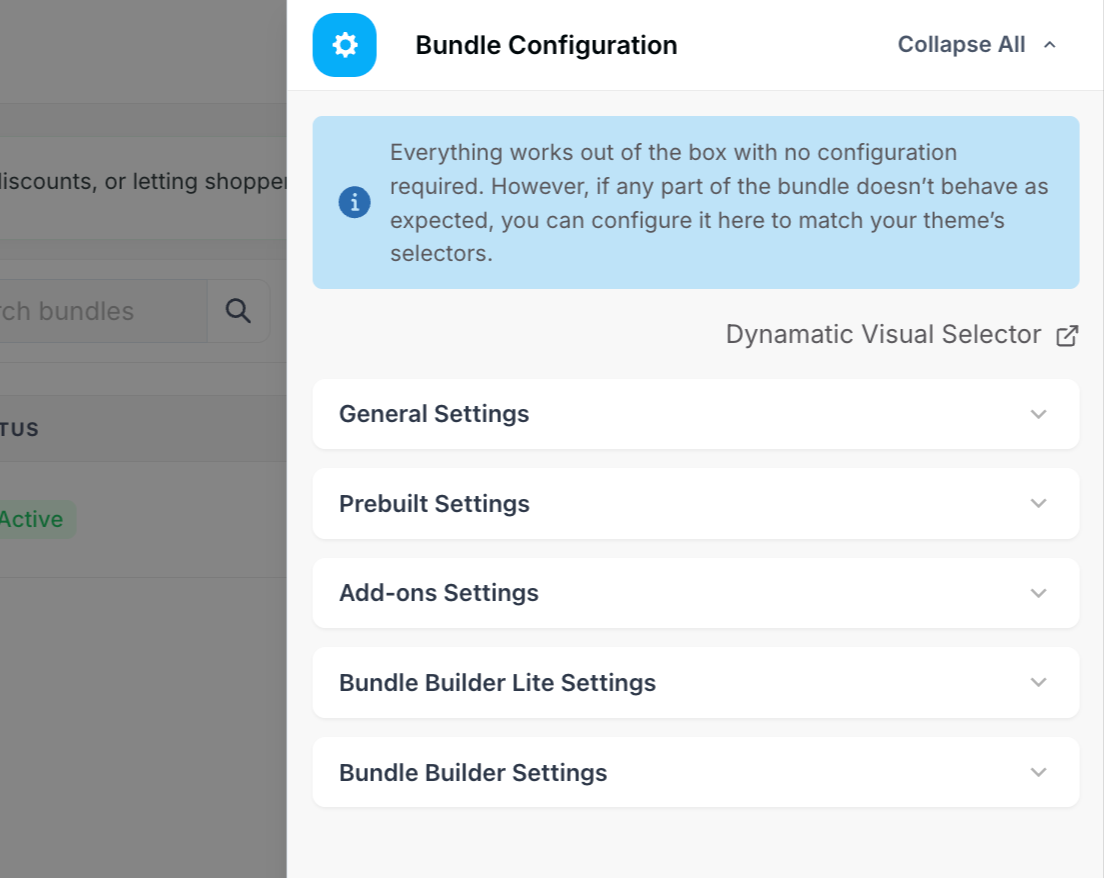
💡 Don't want to write selectors by hand? Use the Dynamatic Visual Selector link at the top of the panel. It opens your live storefront in a point-and-click mode — click an element and Dynamatic captures the correct selector for you. This is the recommended path for anyone who isn't comfortable with CSS.
When you're finished, click Save Config to apply everything. Collapse All tidies the view so you can scan the sections quickly.
Before you start: how the fields work
The panel is split into five collapsible sections, one per bundle feature. Each can be turned on or off independently. You'll see three kinds of field:
Field type | What it expects | Notes |
Toggle | On / Off | Enables or disables a feature. |
Selector | A CSS selector (e.g. | Leave blank to use Dynamatic's automatic detection. Fill it in only when the automatic match is off. |
Position | Before or After | Decides whether the bundle renders above or below a chosen element. |
1. General Settings
Field | What it does |
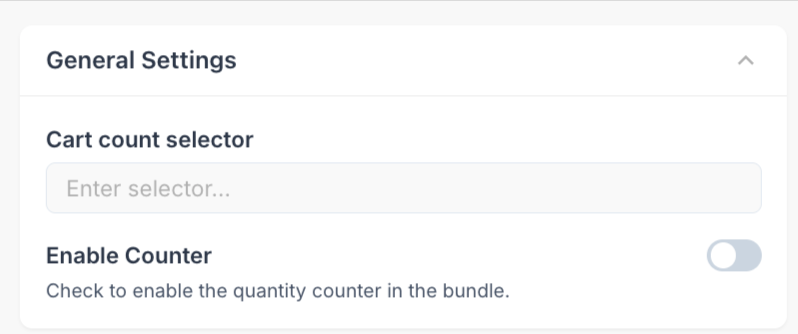
Cart count selector | Points to your theme's cart count so it refreshes after a bundle is added. |
Enable Counter | Turns on the quantity counter inside the bundle. |
2. Prebuilt Settings
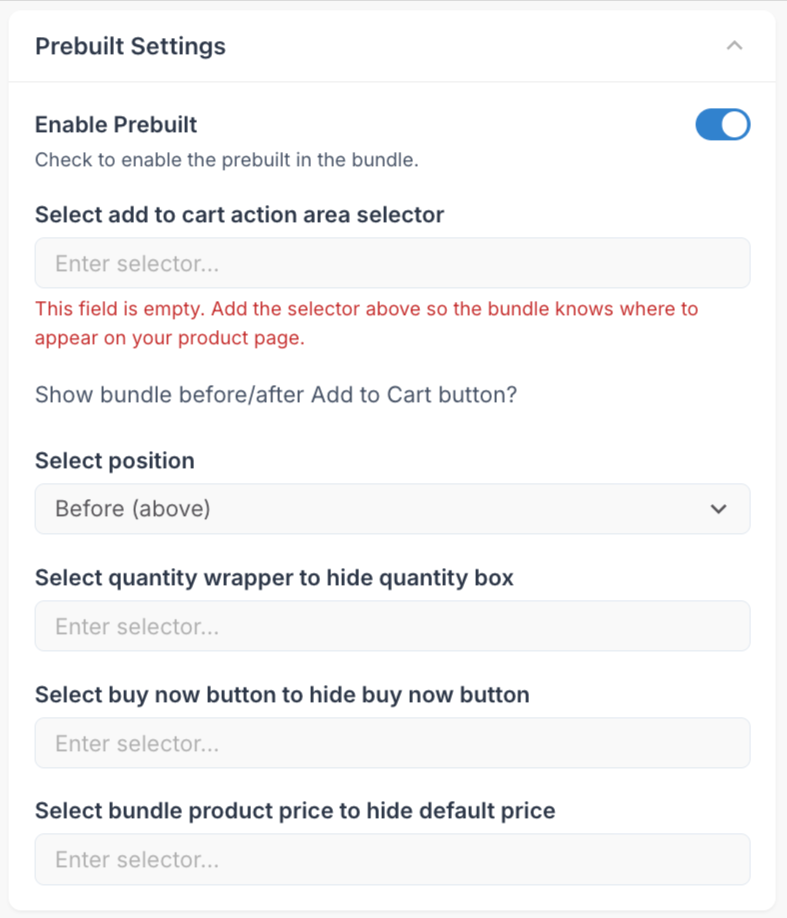
Controls the fixed, curated bundle shown near your Add to Cart button.
Field | What it does |
Enable Prebuilt | Turns the prebuilt bundle on or off. |
Add to cart action area selector ⭐ | The bundle's anchor point. Required — if empty, the bundle won't appear. Start here if it's not showing. |
Select position | Places the bundle above or below the Add to Cart button. |
Quantity wrapper selector | Optional. Hides your theme's quantity box to avoid clashing with the bundle. |
Buy now button selector | Optional. Hides the default Buy Now button. |
Bundle product price selector | Optional. Hides the default price so only the bundle price shows. |
💡 Pro Tip: The optional "hide" fields are only for cleaning up theme elements that visually collide with the bundle. Leave them blank otherwise.
3. Add-ons Settings
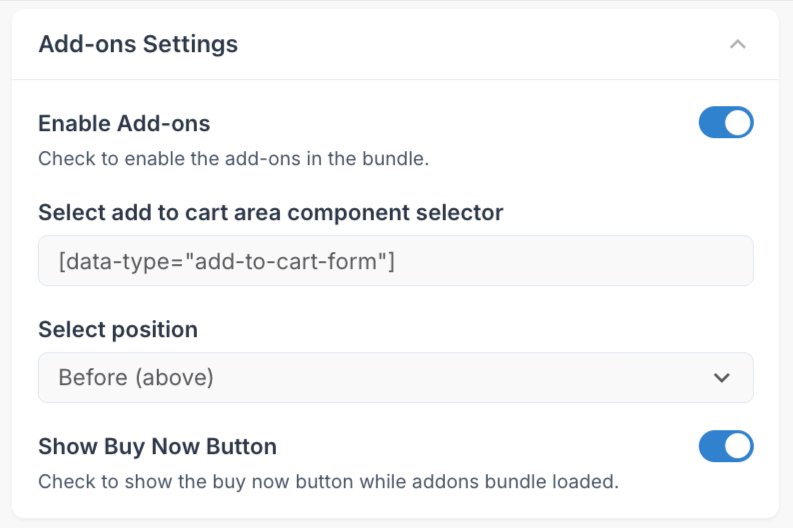
Controls the "frequently bought together" upsells on your product page.
Field | What it does |
Enable Add-ons | Turns the add-ons bundle on or off. |
Add to cart area component selector | Where the add-ons attach. Default |
Select position | Places add-ons above or below that component. |
Show Buy Now Button | Keeps the Buy Now button visible while add-ons are loaded. |
4. Bundle Builder Lite Settings
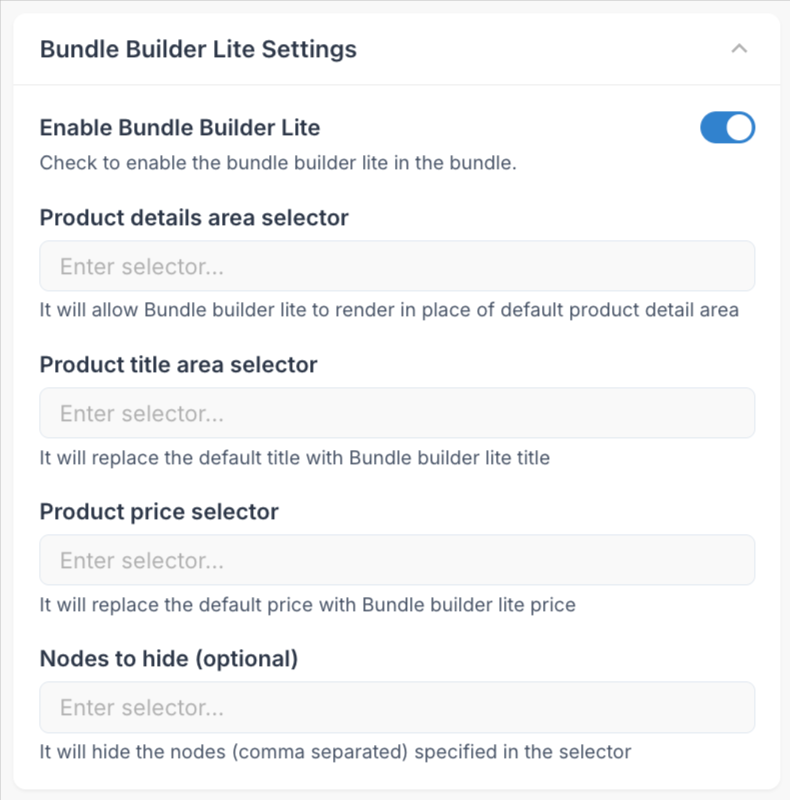
Replaces parts of your product detail area with a streamlined layout.
Field | What it does |
Enable Bundle Builder Lite | Turns Lite on or off. |
Product details area selector | Lite renders in place of this area. |
Product title area selector | Swaps in Lite's own title. |
Product price selector | Swaps in Lite's own price. |
Nodes to hide (optional) | Hides extra elements. Enter selectors comma-separated. |
5. Bundle Builder Settings
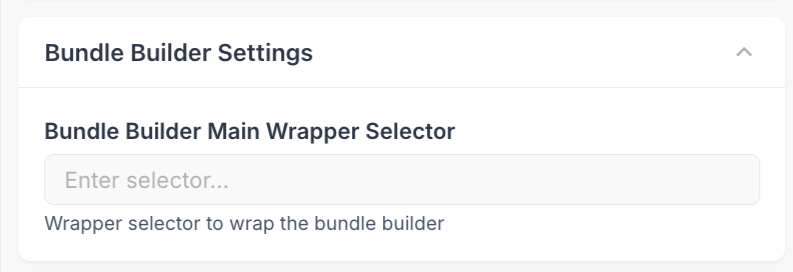
Field | What it does |
Bundle Builder Main Wrapper Selector | The container the full Bundle Builder renders inside. |
Quick checklist
Open the section for your bundle type.
Toggle the feature ON.
Fill in the anchor selector (the "add to cart" field) — most likely to be required.
Set position if the bundle lands in the wrong spot.
Add hide selectors only if elements clash.
Click Save Config.
Common mistakes
Enabled but no anchor selector → bundle has nowhere to render. Always pair the toggle with its selector.
Hide selector too broad → hides more than intended. Use the Visual Selector for the exact element.
Filling in working fields → blank = automatic. If a section works, leave it blank.