Checklist: Enabling Dynamatic in Your Theme
Congratulations on installing Dynamatic! To ensure our features (like the Dynamatic-Cart, Upsells, and Widgets) appear to your customers, you must enable the Dynamatic App Embeds in your Shopify Theme Editor.
Follow this checklist to make Dynamatic live on your storefront.
Step 1: Access the Theme Editor
From your Shopify Admin, go to Online Store > Themes.
Find the theme you want to use (usually your current live theme).
Click the Customize button.
Step 2: Navigate to App Embeds
On the left-hand sidebar of the Theme Editor, look for the App Embeds icon (it looks like a paintbrush and a block, usually the third icon down on the far left edge).
Step 3: Turn On the Switches
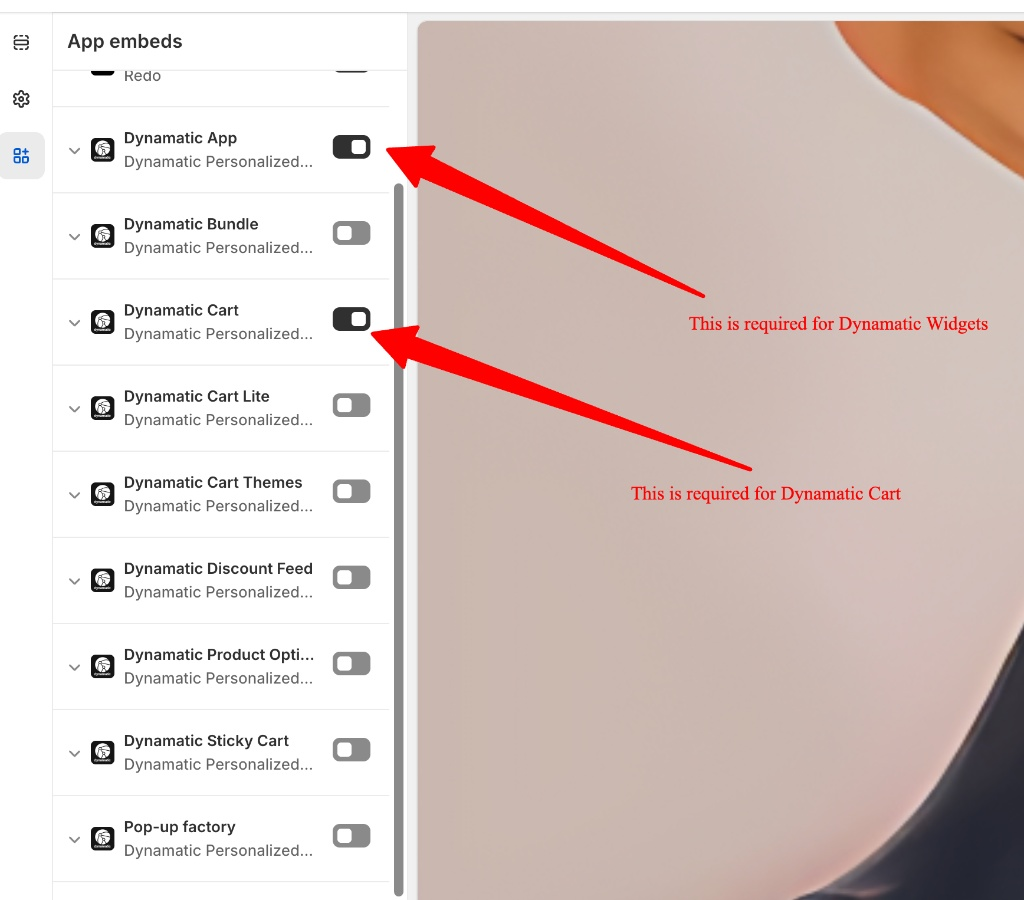
Search for "Dynamatic" in the search bar or scroll through the list. You need to toggle the switches to ON (Blue) for the following:
Dynamatic App
Why? This is the brain of the operation. It powers the logic, analytics, and widget placement across your site.Dynamatic Cart (If applicable)
Why? This replaces the standard drawer with the high-converting Dynamatic Slide-out Cart.
Step 4: Save Your Changes
Once the switches are blue, click the black Save button in the top right corner of the screen.
Step 5: Resolve Cart Conflicts (Class Triggers)
Sometimes, your theme's default cart or a previous cart app may try to open at the same time as the Dynamatic cart. To prevent this "double cart" issue, we need to tell Dynamatic exactly which button triggers the cart so we can override the default behavior.
Note: This step is typically handled by our team during your initial onboarding. However, if you prefer to set this up yourself, follow these steps:
Find the Class Name:
Go to your storefront.
Right-click on your Cart Icon/Button and select Inspect.
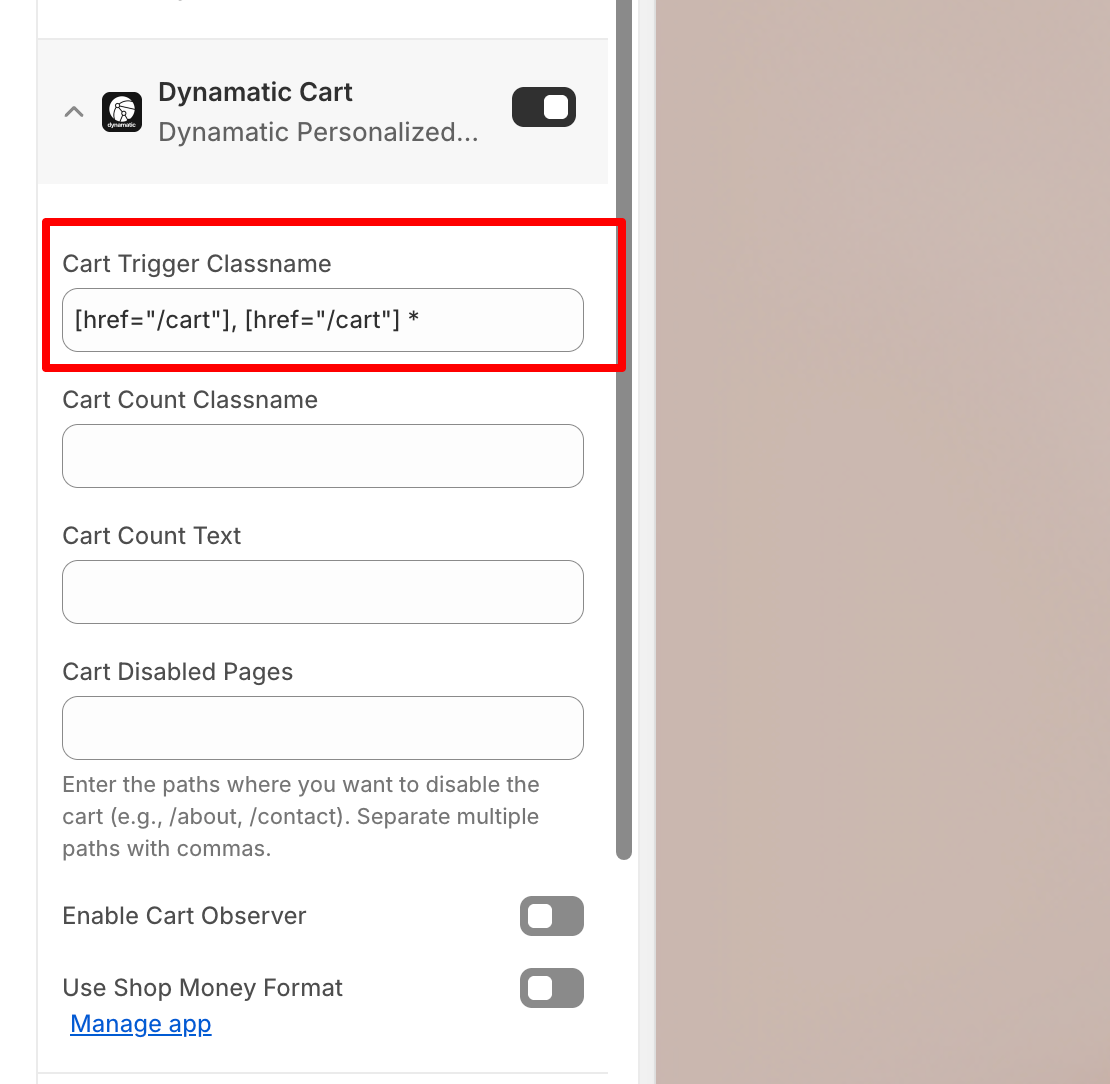
Look for the
class="..."name inside the parent element of the cart button (e.g.,header__cart-iconorcart-trigger).
Add to Dynamatic Cart - Cart Trigger Classname
You can also checkout this video to understand the process of Adding the right Cart Trigger Classname from here: Watch Here
Need help finding the class? Identifying the correct parent class can be tricky depending on your theme. If you aren't comfortable with "Inspect Element," please reach out to our support team via the chat widget. We can locate the correct trigger and resolve the conflict for you in minutes!