

Custom CSS
The Custom CSS interface is designed for users who want granular control over their brand's presentation. By adding custom code, you can modify colors, fonts, spacing, and layouts that aren't available in the standard settings menus.
How to Access
Log in to your Dynamatic App dashboard.
Locate the sidebar on the left and click on Settings.
Select Custom Css from the sub-menu.
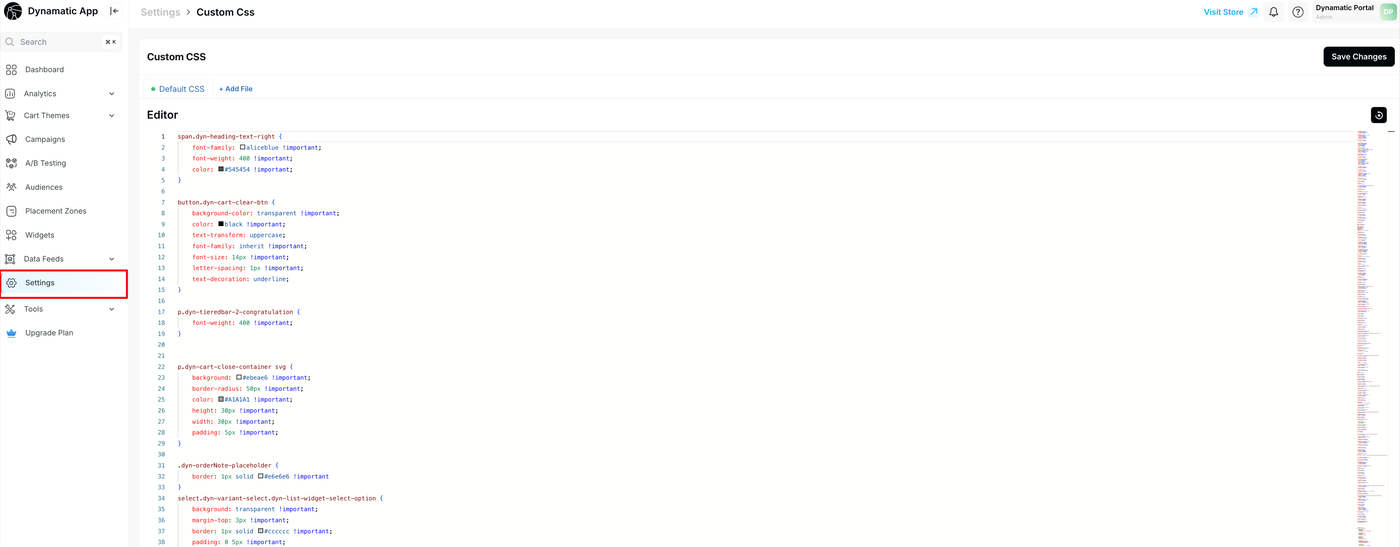
The CSS Editor Interface
The editor provides a developer-friendly environment to manage your styles:
File Tabs: You can manage multiple CSS files. Use the Default CSS tab for general styles or click + Add File to create separate sheets for specific campaigns or widget types.
Syntax Highlighting: The editor automatically colors your code (e.g., selectors in brown, properties in red, values in blue) to make it easier to read and debug.
Line Numbers: Helpful for referencing specific sections of code when collaborating with a team or troubleshooting.
Color Pickers: Small color swatches appear next to hex codes (e.g., #545454). Clicking these usually allows you to visually select a color without needing to know the code.
Best Practices
Note on !important: In the Dynamatic App environment, you will notice many lines end with !important;. Because these styles are applied on top of existing themes, adding !important ensures your custom code takes precedence over the app's default styling.
Tip | Description |
Keep it Organized | Use comments (e.g., /* Header Styles */) to label different sections of your code. |
Test Before Saving | Ensure you check your live site or preview mode after making changes to avoid layout breaks. |
Use Specific Selectors | Target specific classes (like .dyn-variant-select) to avoid accidentally changing the style of the entire page. |
Troubleshooting
If your changes aren't appearing:
Check for Typos: Ensure every curly bracket { } is closed and every line ends with a semicolon ;.
Specifics Matter: If a style isn't applying, try adding the !important tag before the semicolon.
Clear Cache: Sometimes your browser saves an old version of the CSS. Refresh the page or clear your browser cache to see updates.