

Custom JS
The Custom JS feature provides full control over your storefront's behavior and interactivity. It allows you to manipulate DOM (Document Object Model) elements, respond to user events, and integrate third-party tracking or functional scripts directly into your theme.
How to Access
Open the Dynamatic App dashboard.
Navigate to the sidebar and click on Settings.
Select Custom Js from the sub-menu.
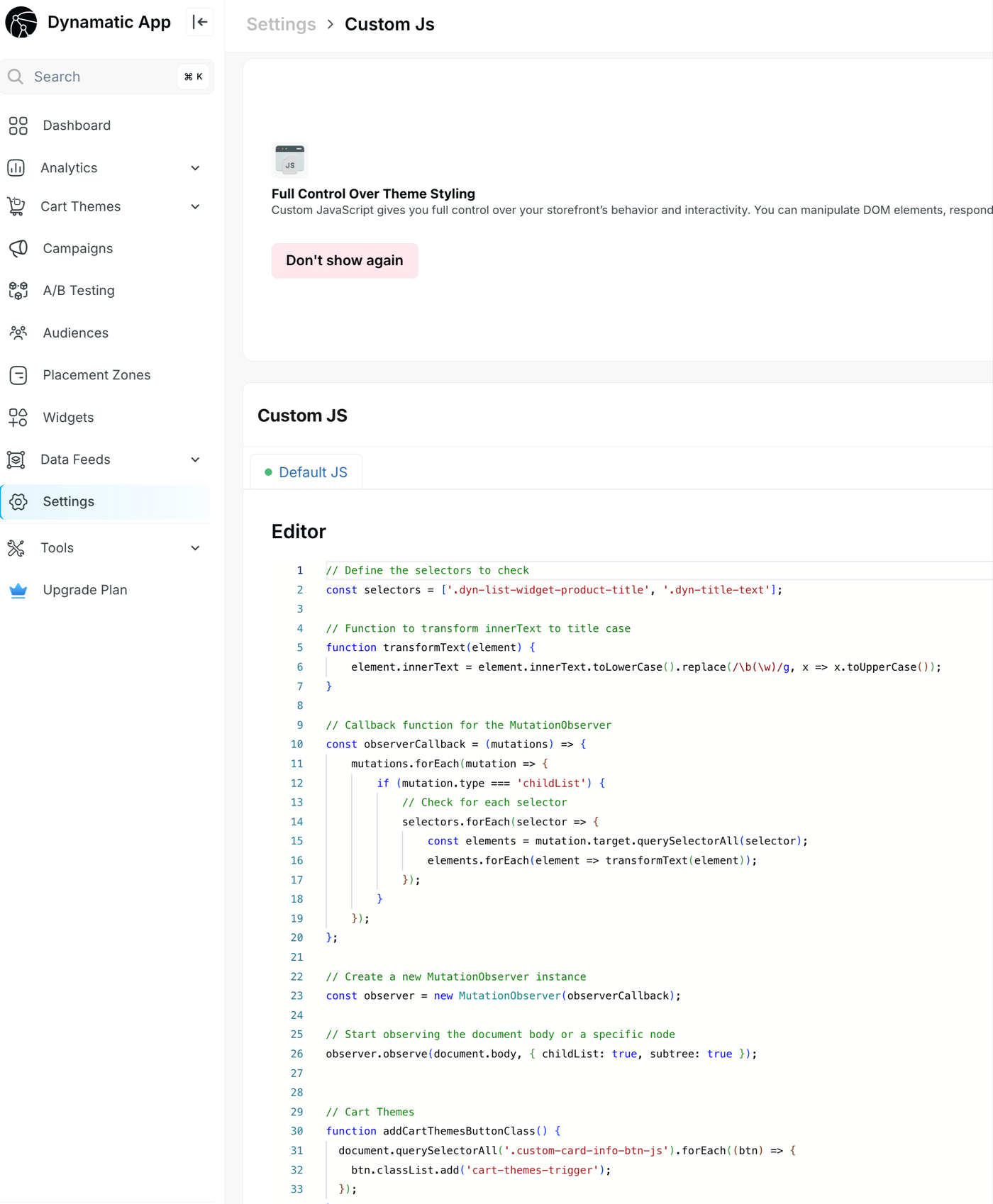
The JavaScript Editor Interface
The interface is optimized for writing and maintaining functional code:
Editor Window: A code editor with syntax highlighting for JavaScript, making it easier to distinguish between variables, functions, and strings.
Default JS Tab: Your main script file where global storefront logic should be placed.
Information Banner: A dismissible notice titled "Full Control Over Theme Styling" that explains the capabilities of custom scripts.
Best Practices & Safety
Warning: Custom JavaScript can significantly impact your site's performance and functionality. Always test scripts in a development environment before applying them to a live storefront.
1. Use MutationObservers for Dynamic Content
Since Dynamatic widgets often load content dynamically (AJAX), standard document.onload scripts might miss elements. As shown in the editor, using a MutationObserver ensures your code runs even when new products or widgets are added to the page without a refresh.
2. Avoid Global Namespace Pollution
Try to wrap your code in functions or blocks to avoid conflicting with other scripts running on your site.
3. Performance Matters
Keep scripts concise.
Avoid infinite loops within observers.
Be specific with your selectors to minimize the work the browser has to do.
Troubleshooting
If your script is not working as expected:
Console Errors: Open your browser's Developer Tools (F12) and check the Console tab for any red error messages.
Selector Accuracy: Ensure the class names (e.g., .dyn-title-text) match the elements exactly on your live site.
Wait for DOM: If your script runs too early, it may not find the elements. Ensure you are either using an observer or placing the script at the bottom of the page logic.