

Experiments Dashboard
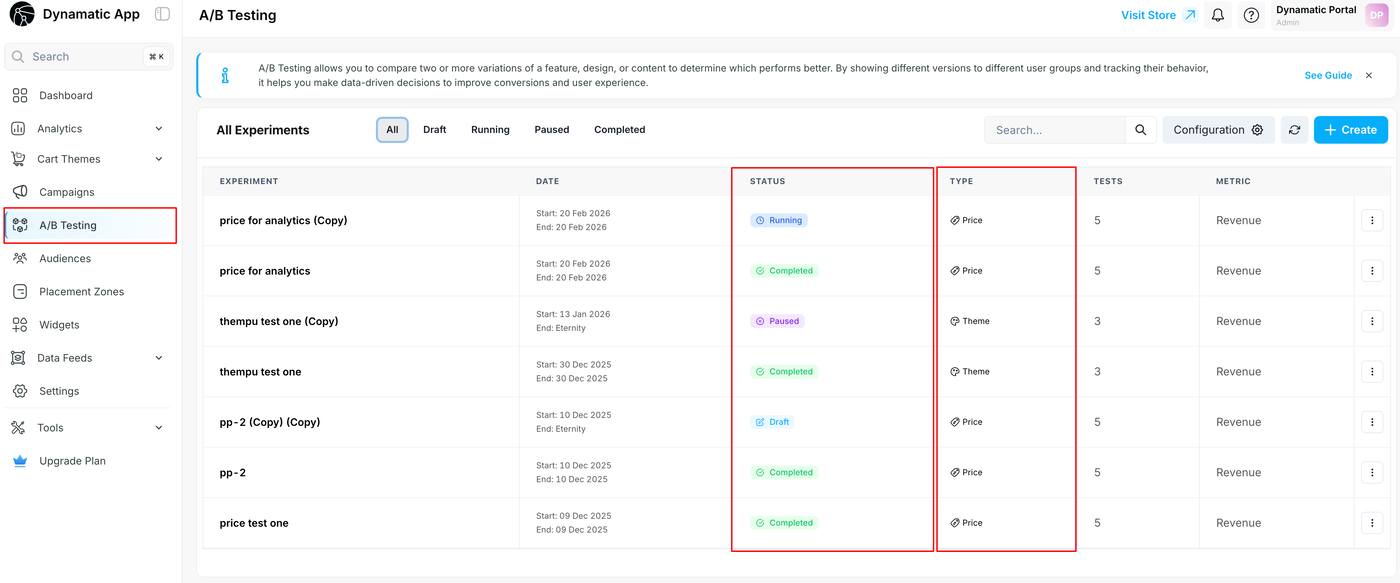
When you open your A/B Testing dashboard, you will see a high-level overview of all your campaigns. Use the highlighted columns to quickly assess the state of each test at a glance:
Check the STATUS: Look here to see if your experiment is currently Running, Paused, Completed, or still saved as a Draft.
Identify the TYPE: Use this column to see the specific category of the A/B test you built, such as a Price test or a Theme test.
Review your TESTS: This number tells you exactly how many variations (or test groups) are included within that specific campaign (e.g., 3 or 5 variations).
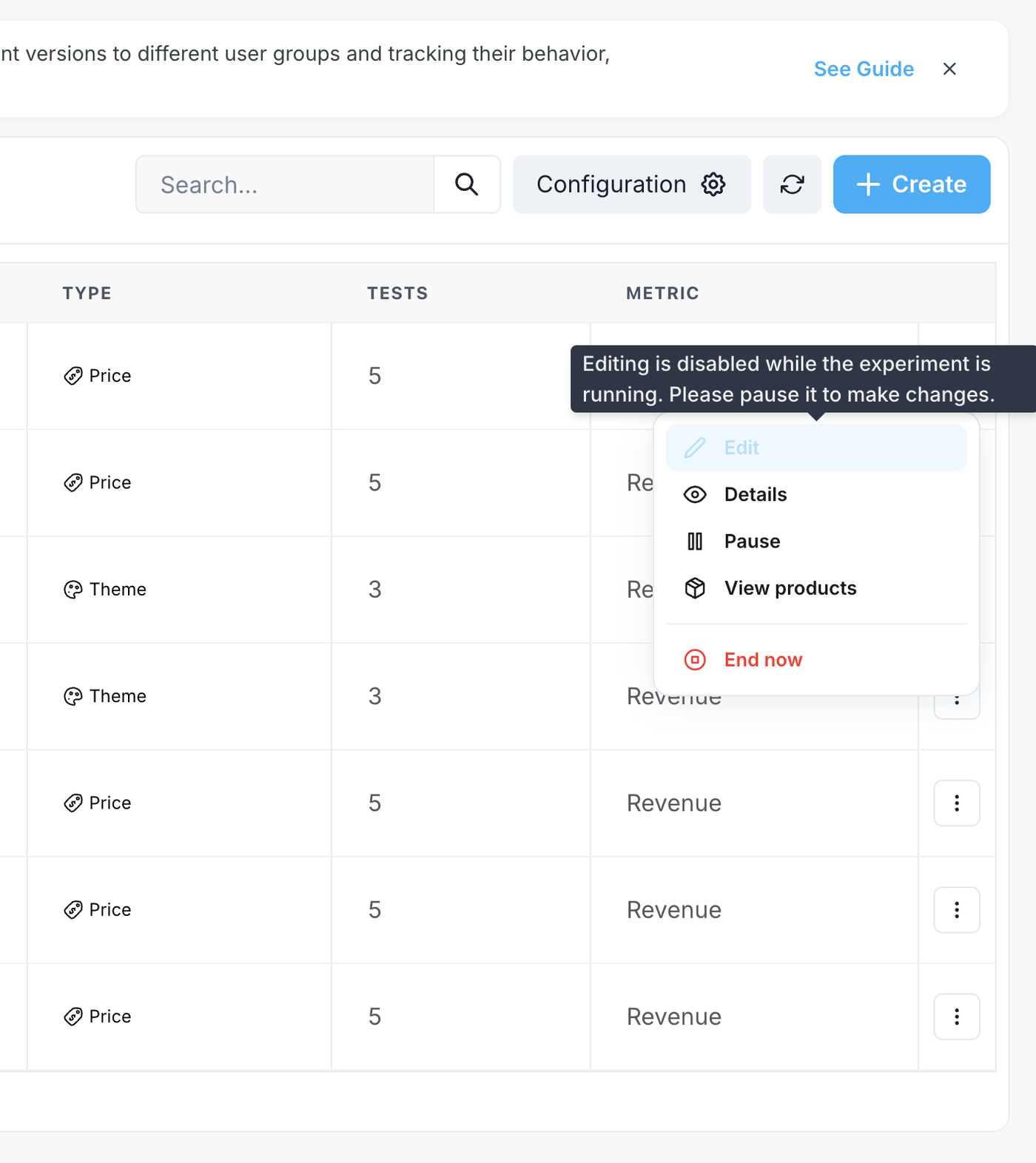
How to Edit an Active Experiment
To protect the integrity of your data, Dynamatic prevents you from altering an experiment while it is actively running and collecting visitor information.
If you need to make changes to a live campaign, follow these exact steps:
Open the Action Menu: Locate your running experiment in the dashboard list and click the three-dot icon on the far right side of the row.
Check the Edit Button: You will notice that the Edit option at the top of the menu is greyed out. If you hover over it, a tooltip will remind you: "Editing is disabled while the experiment is running. Please pause it to make changes".
Pause the Test: From that same dropdown menu, click Pause.
Make Your Changes: Once the experiment's status officially changes to "Paused," you can click the three-dot menu again. The Edit button will now be active, allowing you to safely modify your campaign settings.