

Font Customization
Typography is a key element of your brand identity. The Font Customization page enables you to:
Access Diverse Font Options: Choose from thousands of web-safe Google Fonts or your own proprietary custom fonts.
Live Preview: Instantly see how different font weights and styles will appear on your storefront before applying changes.
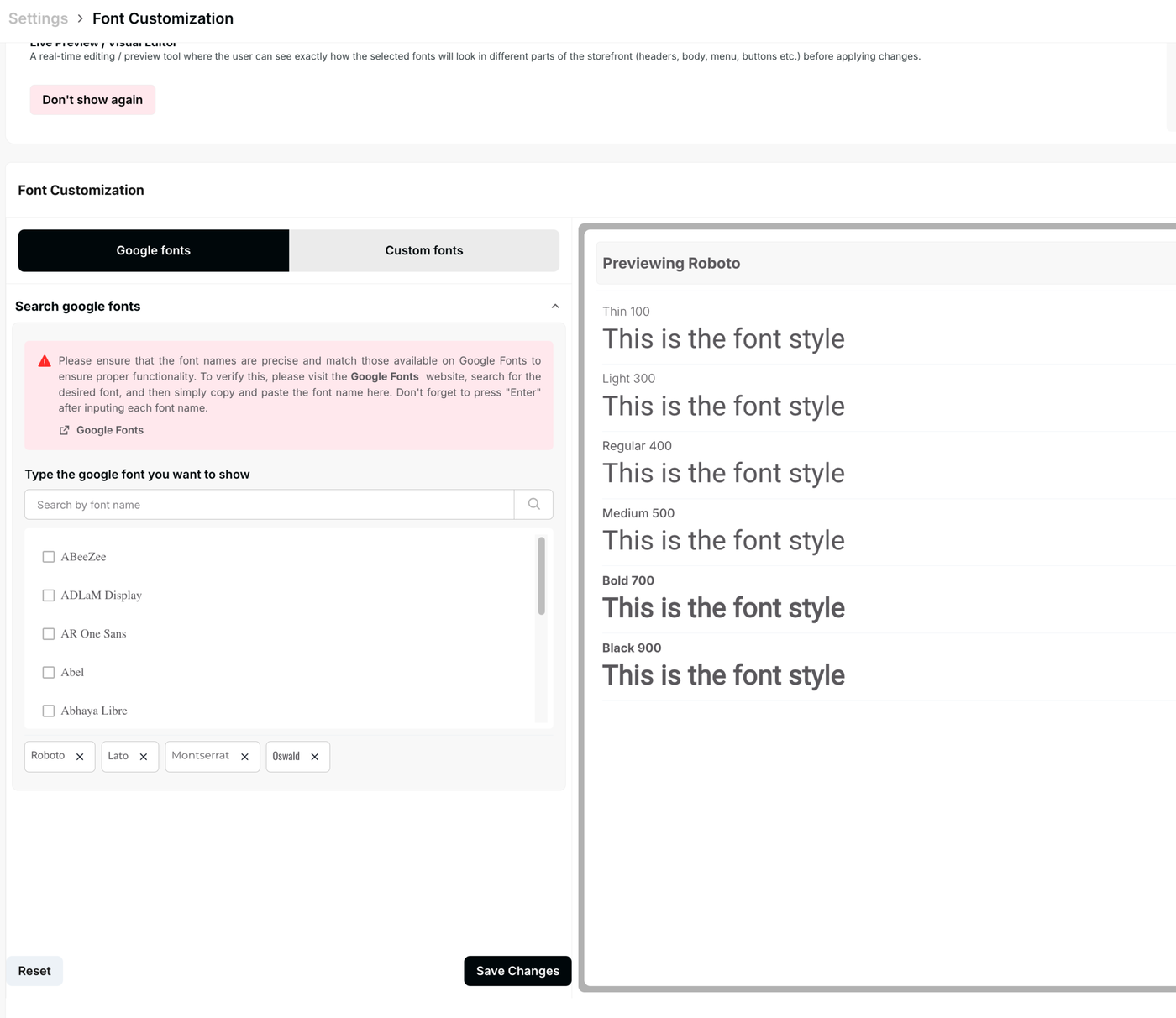
2. Google Fonts Selection
Under the Google Fonts tab, you can search for and manage the fonts integrated with your site.
Search and Selection
Search Google Fonts: Use the search bar to find specific font families (e.g., Roboto, Lato, Montserrat).
Precise Matching: Ensure the font names match Google’s directory exactly to ensure proper rendering.
Active Fonts: Selected fonts appear as tags at the bottom of the search area (e.g., Roboto, Lato), allowing you to quickly see what is currently active.
Warning: To verify a font, visit the official Google Fonts website, copy the exact name, and press "Enter" after inputting it into the search field.
3. Custom Fonts
The Custom Fonts tab (adjacent to Google Fonts) allows merchants to upload their own unique font files (typically .woff, .woff2, or .ttf). Use this section if your brand requires a specific licensed typeface not available in the public Google library.
4. Preview Pane
The right-hand side of the dashboard provides a Live Preview of your selected font (e.g., Previewing Roboto). This allows you to check legibility across various weights:
Thin (100)
Light (300)
Regular (400)
Medium (500)
Bold (700)
Black (900)
Preview Controls
Font Size Slider: Adjust the preview size (e.g., 16px) to see how the text looks at different scales (body text vs. headings).
Reset: Reverts the preview to the default font style.
5. Saving and Management
Save Changes: Located at both the top right and bottom right of the page. Click this to push your typography updates to your live store.
Reset: Use the reset button at the top right if you wish to discard all current unsaved changes and return to your previous configuration.