

Test Audiences: Why and How to Isolate Your Testing
Before launching any campaign, offer, or widget, deploying it to a Test Audience is the single most critical step to ensure a flawless customer experience. A Test Audience allows your internal team to view and interact with the content on the live site without exposing unvalidated changes or incomplete offers to real customers.
The Imperative for Test Audiences
Benefit | Description |
Risk Prevention | Prevents major deployment errors—such as broken links, incorrect styling, or discount code malfunctions—from ever reaching your general customer base. |
Precise Validation | Enables rigorous testing of complex logic within Audiences and Rules Feeds to confirm that the correct content is served only under the specified conditions. |
Safe Deployment | Allows you to activate the entire Campaign in a live environment, verifying that all widget placed (Placements, Widgets) are working end-to-end, with visibility limited exclusively to your testing team. |
Methods for Creating a Test Audience
Dynamatic provides two primary methods for isolating your testing, depending on the placement of the widget:
Method 1: Email-Based Testing (Best for Checkout & Post-Purchase)
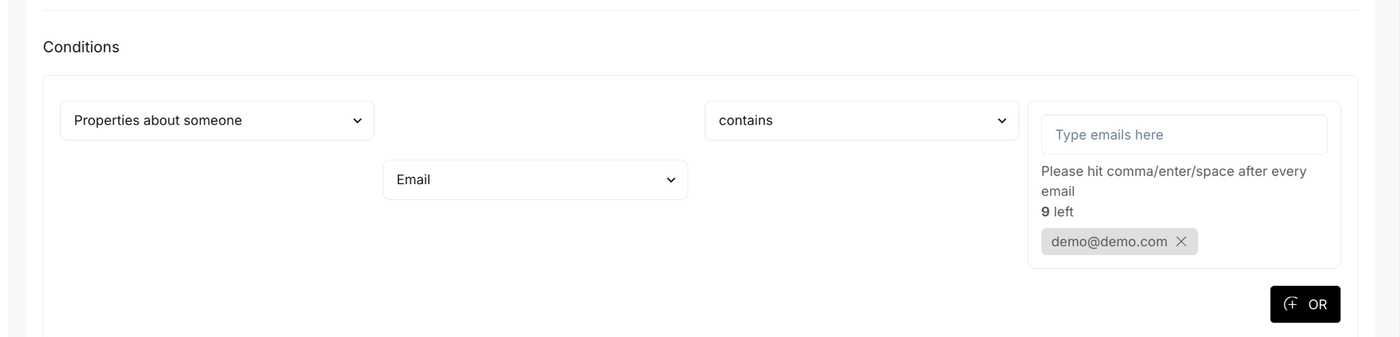
This method is highly effective for testing campaigns that run in the Checkout or Post-Purchase zones, as the experience is triggered only when a known, whitelisted email address is used for the transaction.
Step | Configuration | Detail |
1. Access | Navigate to Audiences > All Audiences > Create Audience. | N/A |
2. Set Rule | In the Conditions section, set the rule: Properties about someone > Email > contains. | N/A |
3. Define List | In the text box, enter the specific email addresses you will use for testing, separated by commas or enters (e.g., | This creates a highly precise Test Audience that only those emails will match. |
4. Execution | Place an order using one of the whitelisted email addresses. | The widget will only appear for transactions made by that email. |
Method 2: URL Parameter Testing (Best for Webpage & Cart)
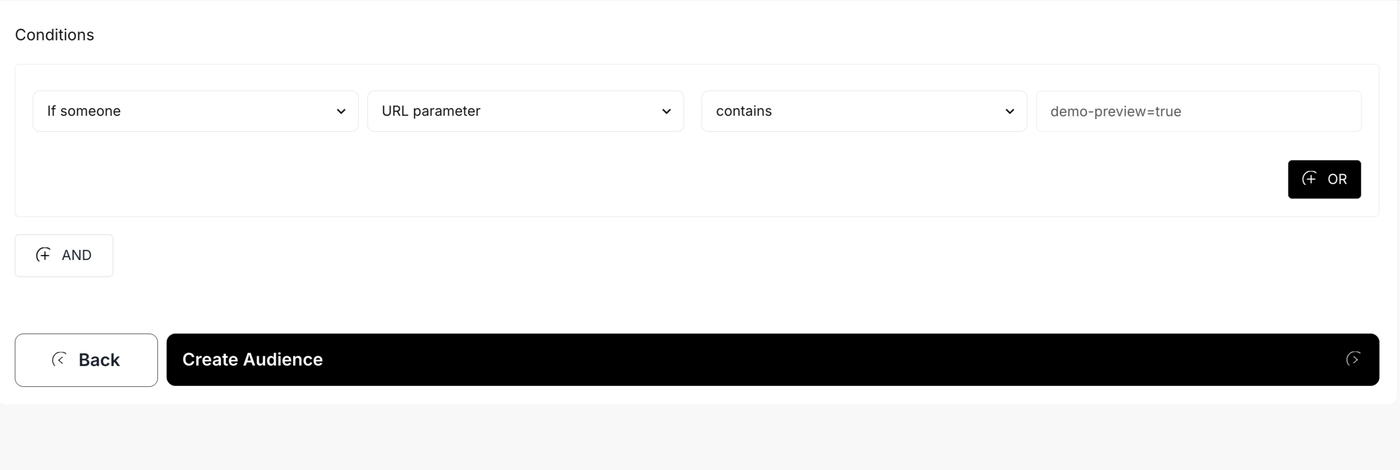
For widgets placed on the Webpage or in the Cart where a full checkout process is not required to view the content, using a URL parameter is the most efficient testing method. This allows you to append a secret key to your store's URL to trigger the test experience.
Step | Configuration | Detail |
1. Access | Navigate to Audiences > All Audiences > Create Audience. | N/A |
2. Set Rule | In the Conditions section, set the rule: If someone > URL parameter > contains. | N/A |
3. Define Key | In the final text box, define a unique, unpublished parameter, such as | This key should be unique and not used anywhere else on your store. |
4. Execution | Visit your store and append the parameter to the URL: demo.myshopify.com/?demo-preview=true | The widget will only appear for users who have that specific parameter in their browser URL. |
By utilizing these precise testing audiences, you can safely verify functionality, styling, and offer logic before rolling out the campaign to your entire customer base.