

Advanced Volume Bundle
The Advanced Volume Bundle Widget is a powerful merchandising tool designed to incentivize customers to purchase multiple units of the same product. By offering increasing, tiered rewards based on quantity, this widget dramatically increases both order volume and overall revenue through strategic bundling.
Attribute | Description |
Widget Name | Advanced Volume Bundle |
Core Purpose | Increases Units Per Transaction (UPT) and Average Order Value (AOV) by displaying clear, tiered incentives (discounts, free shipping, or gifts) when a customer buys in bulk. |
Where It Works | Webpage (Ideal for Product Pages to drive bulk purchases at the point of decision). |
Playbook
Stop letting customers buy just one of your top-selling consumables. The Advanced Volume Bundle widget gamifies the purchasing experience by showing shoppers exactly how much they save by adding more to their cart. By shifting the customer's mindset from "Should I buy this?" to "How many should I buy to get the best deal?", you instantly scale your Units Per Transaction without adding extra acquisition costs.
The "Why" & The Metrics
Primary Metric Impact: Units Per Transaction (UPT), Average Order Value (AOV), Customer Lifetime Value (LTV) through accelerated product adoption.
The Psychological Trigger: Perceived Value & Gamification. Displaying clear, incremental benefits (e.g., "Buy 2 – 5% off, Buy 3 – 10% off") triggers the human desire to maximize a good deal, encouraging bulk buying.
Best Fit Industries: Consumables (Supplements, Food & Beverage), Beauty & Skincare, Apparel Basics (Underwear, Socks, T-shirts), and Pet Supplies.
Strategic Use Cases (The "Plays")
Play #1: The Stock-Up Saver (Tiered Discounts)
The Concept: Offer percentage-based discounts that scale with the quantity added to the cart.
The Logic: Perfect for items customers use daily. The more they buy, the better the unit economics are for both you and the customer.
Configuration Strategy:
Trigger/Condition: Product Pages of high-repurchase rate items.
Key Setting: Add Bundles with escalating percentage discounts (e.g., Tier 1: 2 units = 10% off, Tier 2: 3 units = 15% off).
Copy/Creative Idea: Heading: "Stock Up & Save!"
Play #2: The Sweetener (Free Gift or Shipping)
The Concept: Instead of discounting the core product, unlock a perk when a quantity threshold is met.
The Logic: Protects your core product margins while still driving higher UPT. Free shipping is often a stronger psychological driver than a 10% discount.
Configuration Strategy:
Trigger/Condition: Mid-to-high ticket items where margins are tight.
Key Setting: Set bundle offer to "Free Shipping" or "Free Gift" at the highest quantity tier.
Copy/Creative Idea: "Buy 3 to Unlock Free Express Shipping."
Play #3: Mix-and-Match
The Concept: Allow customers to build their volume bundle from a specific category or collection.
The Logic: Removes the friction of forcing customers to buy 3 of the exact same variant or product, giving them the flexibility to try new flavors or colors.
Configuration Strategy:
Trigger/Condition: Category or Collection Pages.
Key Setting: Ensure your trigger products encompass the intended collection.
Copy/Creative Idea: Heading: "Build Your Routine."
Pro-Tips & Constraints
Platform Constraint: This widget is specifically designed to function on Webpages.
Margin Check: Always calculate your blended margins before setting your highest discount tier. Ensure your "Buy 5, save 25%" tier is still profitable after shipping costs.
Auto-Updates: The widget automatically updates the pricing based on the selected quantity, ensuring a frictionless and transparent user experience.
Creative Ideas / Inspiration
Use the ideas below to explore creative ways to deploy Volume Bundles across your catalog.
Idea Type | Description | Goal |
The Pantry Filler | Offer deep discounts for buying 6 or 12 units of a staple grocery or supplement item. | Maximize immediate revenue and clear inventory. |
The Starter Pack | "Buy 2, Get a Free Accessory" (e.g., buy 2 bags of coffee, get a free branded mug). | Introduce new product lines via high-volume purchases. |
The Gifting Multiplier | Offer a "Buy 3, Save 20%" during holiday seasons for items commonly given as gifts (candles, lotions). | Capitalize on seasonal shopping behavior. |
Configuration Options
Setting up your Advanced Volume Bundle involves three main steps. From the "Create Widgets" menu, select a template, name your widget, and configure the following tabs:
1. Content Tab: Logic and Sourcing
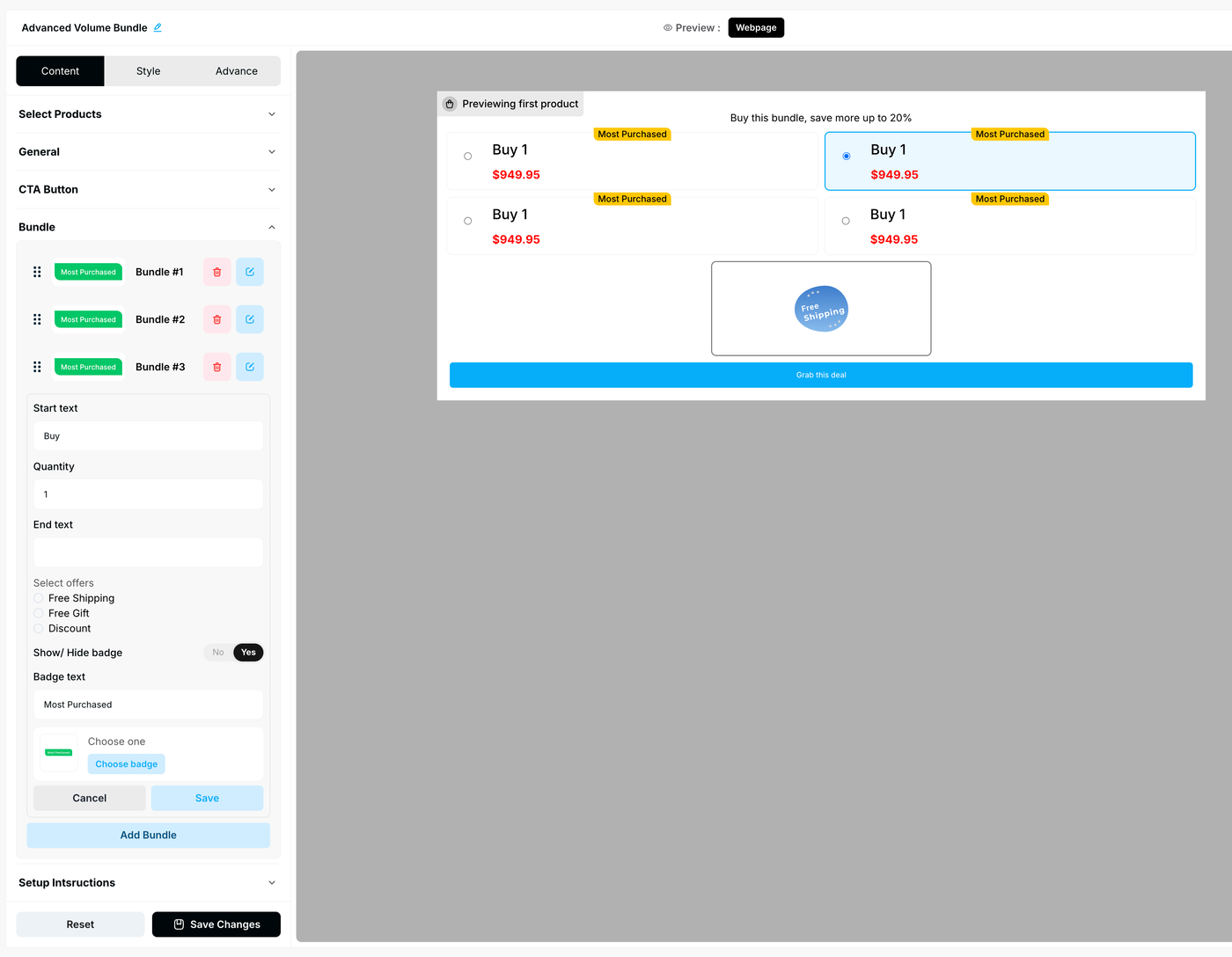
This is where you define which products trigger the bundle and what offers are available.
Setting | Functionality | Options/Detail |
Trigger Product | Defines where the widget appears. | Select Manual to hand-pick the exact products that will display the volume bundle options. |
Messaging | Customizes the text the customer sees. | Set your primary Title and Short Description. |
Bundle Configuration | Defines the tiers and rewards. | Add Bundles to create your tiers. For each tier, select the reward type: Discount, Free Shipping, or Free Gift. |
Call-to-Action (CTA) | Customizes the action button. | Set the CTA button text (e.g., "Add Bundle to Cart"). |
2. Style Tab: Visual Customization
Ensure the bundle tiers match your store's branding and look natively integrated into your product page.
Color Control: Customize the CTA Button background color and text color.
Typography: Adjust the font size and font weight to ensure the discount tiers are highly readable and eye-catching.
3. Advanced Tab: Technical Refinements
Device Settings: Choose whether the widget should display on all devices, or restrict it to specifically Mobile or Desktop.
Custom CSS: Input custom CSS code for specialized layout adjustments that go beyond the native style toggles.
Publishing Your Configured Widget Live
Once you have clicked Save Changes on your widget configuration, follow these steps to deploy it to your Shopify storefront:
Create or Select a Campaign: Navigate to Campaigns. Create a new campaign or select an existing one, then click Add Experience.
Copy Zone ID: Ensure you have created a "Webpage Zone." Copy the ID of this specific zone.
Navigate to Shopify Admin: Go to your Shopify Admin panel -> Online Store -> Themes.
Open the Customizer: Click the Customize button on your active theme.
Place the Widget: Navigate to the specific webpage/product page in the customizer. Select the block where you want the bundle to appear.
Paste and Save: Paste your copied Widget Zone ID into the designated field and click Save.
Learn about the complete widget deployment process
Publishing Your Configured Widget Live
This following documentation section provides the final, detailed steps required to publish your fully configured widget and make it visible to customers on your live storefront.
01. How to successfully setup a widget
02. Understanding and Creating Audiences
Final Deployment
Once saved in your Shopify theme, navigate to your live store to view the Final Output. Your Advanced Volume Bundle should now be dynamically updating prices and encouraging customers to stock up and save!