

Slideout Upsell Widget
This section guides you through the process of creating and configuring the Slideout Upsell Widget, an effective tool designed to increase Average Order Value (AOV) by dynamically suggesting products within the customer's cart.
Widget Overview
Widget Name: Slideout Upsell
Purpose: Adds a visually engaging upsell or cross-sell section within your dynamic cart as a slideout panel. It suggests related or high-margin products while the customer reviews their cart, helping to increase AOV.
Where It Works: Dynamic Cart
Main Features:
Appears as a collapsible panel that slides out from the dynamic cart.
Displays product image, name, and price.
Allows quick “+ Add” functionality to instantly add items.
Can include multiple products using manual selection or rule-based logic.
Configuration Options:
Customize the trigger position and appearance of the slideout tab.
Select upsell logic (manual or rule-based recommendations).
Choose the number of products shown.
Modify font styles, button appearance, and spacing.
Enable/disable based on cart value or product rules.
Playbook
Create revenue out of thin air. The biggest challenge in the cart is limited space. You want to show upsells, but you don't want to bury the "Checkout" button. The Slideout Upsell solves this by using "off-screen" real estate. It creates a dedicated drawer for impulse buys that sits politely on the side until the customer interacts with it. It’s the digital equivalent of the candy rack next to the register, rather than on the register.
The "Why" & The Metrics
Primary Metric Impact: Average Order Value (AOV) and Units Per Transaction (UPT).
The Psychological Trigger: Curiosity & Friction Reduction. The collapsible tab acts as a "curiosity gap"—customers want to see what's inside. Once open, the ability to "+ Add" without leaving the cart removes the friction of shopping.
Best Fit Industries: Beauty (Samples/Minis), Fashion (Accessories), Food & Bev (Single bars/drinks).
Strategic Use Cases (The "Plays")
Play #1: The "Mystery Deal" (Curiosity Hook)
The Concept: Use the collapsed state to tease a special offer.
The Logic: Instead of showing the product immediately, use the tab text to drive curiosity.
Configuration Strategy:
Trigger/Condition: All Carts.
Key Setting: Customize the Trigger/Tab Text to say "Unlock Special Offer" or "See Your Exclusive Deal."
Content: Select a high-converting, low-cost item (Manual selection).
Play #2: The "Last-Minute Essential" (Impulse Buy)
The Concept: Offer low-consideration, functional add-ons that people often forget.
The Logic: If someone is buying shoes, they don't want to browse for socks. If you put the socks in a slideout panel, they can toss them in the cart in one second.
Configuration Strategy:
Trigger/Condition: Cart contains [Main Category Product].
Key Setting: Product Selection: Manual (Choose batteries, socks, care kits, warranty).
Copy: Heading: "Don't forget the essentials."
Play #3: The "Deal Sweetener" (Discounted Add-on)
The Concept: Offer a product that is only discounted if added via this specific widget.
The Logic: Leveraging the Discount feature within the widget creates exclusivity. "I can only get this price here."
Configuration Strategy:
Trigger/Condition: Cart Value > $50.
Key Setting: In the Content tab, set a Discount (e.g., 20% off).
Copy: Heading: "Add a Mystery Box for 20% Off."
Pro-Tips & Constraints
Smart Constraint: This widget lives inside the Dynamic Cart. It does not work on the standard Shopify Cart Page (URL /cart). You must have the Dynamatic Cart enabled.
User Experience: Don't overload the slideout with 20 products. The "Paradox of Choice" applies here. Keep it to 3-5 highly relevant items to ensure a quick decision.
Visibility: Ensure the "Trigger" (the tab/button to open the slideout) is placed where users naturally look—usually near the subtotal or just below the product list.
Step-by-Step Creation
Click Create Widgets: From your dashboard, click Create Widgets. A new page titled "Add New Widgets" will appear.
Fill in the Details: Fill in the Widget Title and a Short Description for your widget.
Select a Template: If any existing widgets align with your title, they will appear at the bottom of the page. Select the desired template.
Widget Configuration: Content
After clicking Next, you will be taken to the customization page. We will begin with the Content tab.
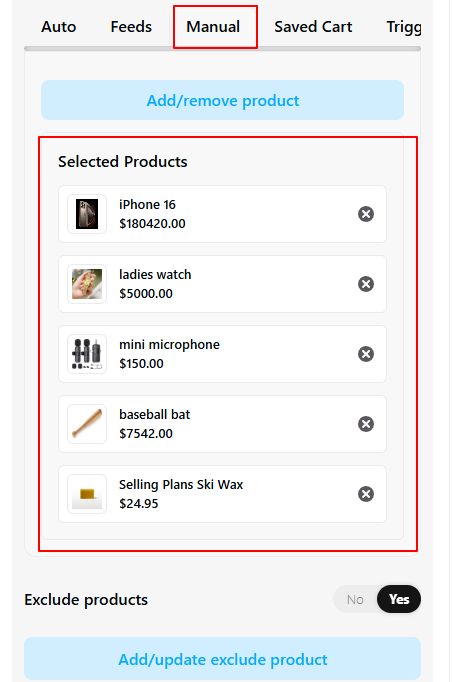
Product Selection: Since we are using the Manual option, upload the specific products you want to feature as upsells in the slideout panel.
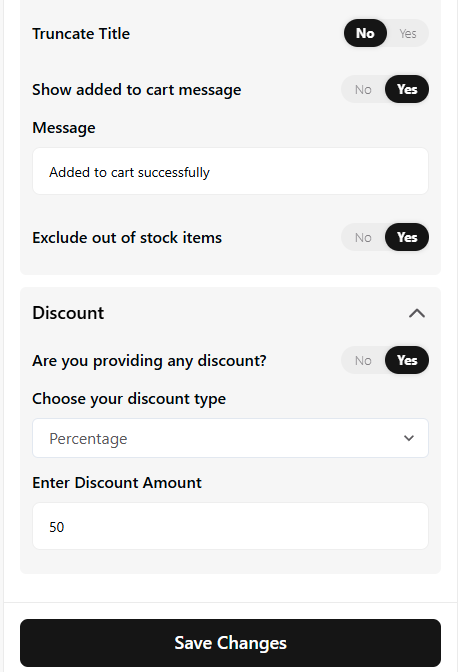
Custom Text: Customize the heading text and the accompanying cart message to encourage customers to view the upsell products.
Discounts: If applicable, define discounts and percentages to apply to the suggested upsell products.
 |  |
Once the content is set, click Save Changes.
Widget Configuration: Style and Advanced
Style Section
The Style section controls the visual design of your slideout:
Heading Style: Customize the typography of the widget's title.
Product Settings: Adjust the appearance of the product cards, including image size and layout.
Button Style: Ensure the “+ Add” button is prominent and matches your brand colors.
Advanced Options
The Advanced tab provides final control over where and how the widget is displayed:
Device Targeting: Control which devices (Desktop, Tablet, or Mobile) the widget will appear on.
Custom CSS: Use this field to input custom CSS for precise styling that goes beyond the standard options.
Once all sections are complete, click Save. Your Slideout Upsell widget is now created and ready for launch.
Publishing Your Configured Widget Live
This following documentation section provides the final, detailed steps required to publish your fully configured widget and make it visible to customers on your live storefront.
01. How to successfully setup a widget
02. Understanding and Creating Audiences
03. Creating Placements and Zones
05. Displaying Your Widgets on the Storefront
Viewing the Live Widget
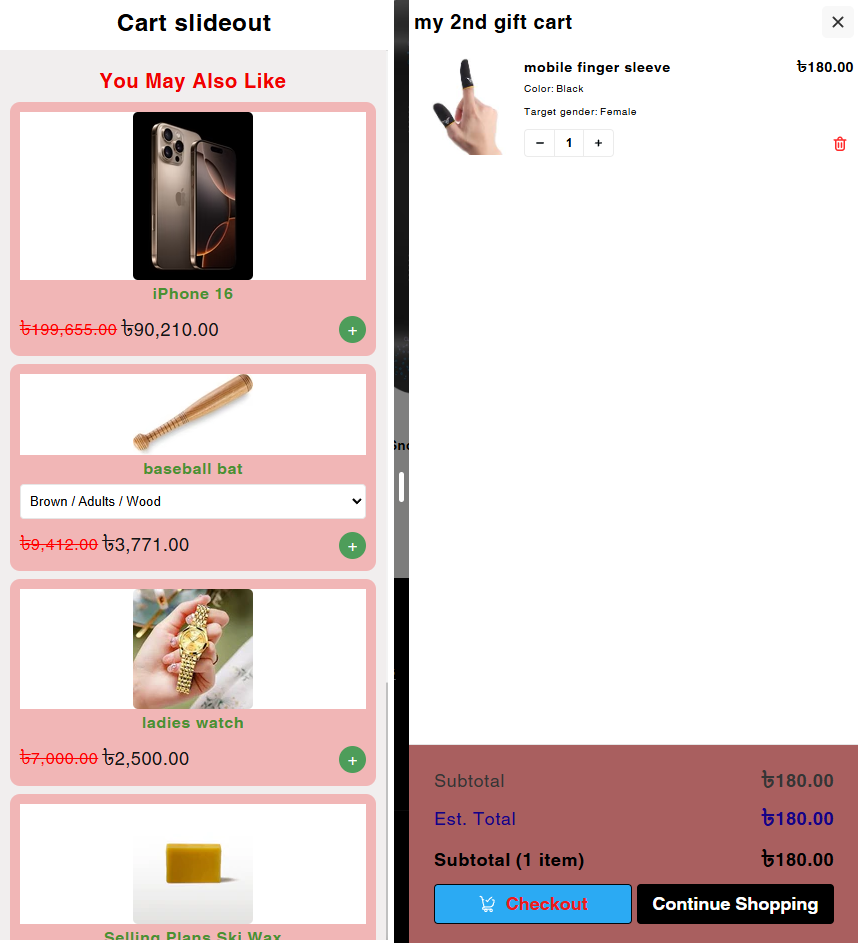
To see the final result, trigger your dynamic cart on your website. The Slideout Upsell panel should be visible, perfectly integrated with your cart, showing the products you selected.