

UGC Video Manager
Leveraging user-generated content videos is a powerful tool to build trust and showcase the benefits of almost any product. Over the years, apps have been developed that allow merchants to showcase product-specific videos within shopify.
Dynamatic app, allows you to upload videos to our platform, tag them to specific products or create playlists, and then display them on any page on your store!
Playbook
Bring the "TikTok Effect" to your storefront. Static images show what a product looks like; video shows how it feels. The UGC Video Manager bridges the gap between social media browsing and e-commerce buying. By embedding autoplaying, shoppable videos directly on your site, you stop customers from leaving to check YouTube reviews. You keep them engaged, build instant trust through social proof, and let them buy the look instantly.
The "Why" & The Metrics
Primary Metric Impact: Time on Site, Conversion Rate (CR), and Engagement.
The Psychological Trigger: Social Proof & Mirror Neurons. Seeing a real person use and enjoy a product triggers a "mirror" response—the customer imagines themselves having that same positive experience.
Best Fit Industries: Fashion (Fit/Movement), Beauty (Application/Results), Tech (Unboxing/Setup), Food (Taste Tests).
Strategic Use Cases (The "Plays")
Play #1: The "Shoppable Lookbook" (Product Page)
The Concept: Replace the boredom of static size charts with a video of a model moving in the clothes.
The Logic: Customers are unsure about fit and fabric flow. A video answers these questions instantly. Tagging the product allows for an instant "Add to Cart."
Configuration Strategy:
Zone: Product Page.
Backend: Upload the video and Tag the specific product ID.
Widget Config: Enable Shoppable Video settings so the product card appears within the player.
Layout: Carousel (if showing multiple angles) or Single Player.
Play #2: The "Social Wall" (Homepage)
The Concept: A grid of influencer reviews and customer testimonials right on the homepage.
The Logic: This mimics the Instagram/TikTok discoverability grid. It creates high energy and proves that your brand has a community.
Configuration Strategy:
Zone: Homepage.
Layout: Grid View.
Behavior: Set Autoplay on Mute to draw the eye without being annoying.
Content: curated mix of unboxings and lifestyle shots.
Play #3: The "Anxiety Buster" (Checkout/Cart)
The Concept: A high-trust video (e.g., a founder thank you or a detailed unboxing) placed near the checkout button.
The Logic: Reduce cart abandonment by reinforcing quality right before the payment decision.
Configuration Strategy:
Zone: Cart Drawer or Checkout.
Layout: Single Player (small footprint).
Content: "Why we offer a 30-day guarantee" or "See the premium packaging."
Pro-Tips & Constraints
File Size Limit: The maximum upload size is 30MB. You must compress your videos before uploading. Short, snappy clips (10-30 seconds) convert better than long documentaries anyway.
Page Speed: Video is heavy. Do not place 20 autoplaying videos on a single page. Use the Carousel layout to load them lazily, or limit the Grid to 4-6 items.
Aspect Ratio: Vertical (9:16) videos look best on mobile (like Stories/Reels). Horizontal (16:9) videos look best on Desktop. Try to use consistent aspect ratios within a single widget for a clean look.
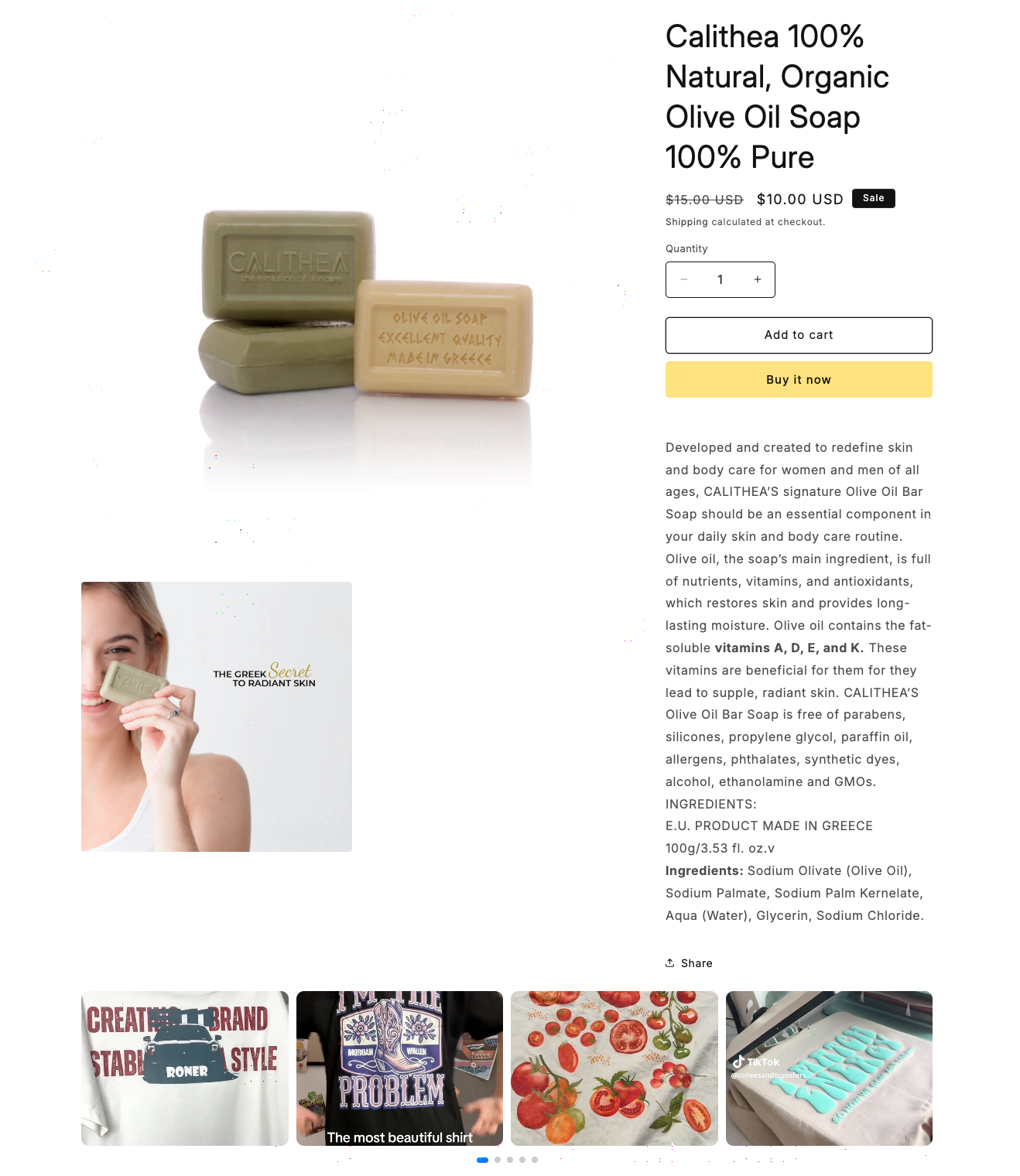
These videos autoplay on mute, and can be clicked by a customer to display either a reel like player, or a full screen player with the ability to see exactly what products have been tagged to that video. You can even add to cart directly from the video player!
We offer a variety of settings and formats, including grid view, carousels, and similar layouts so that you can control the exact look and feel. Of course, since this is Dynamatic, you can define the specific placement of where you want that widget to display (using zones!) and even the audience of users who see it.
The following videos will walk you through exactly how to set up these UGC video widgets, including how to manage your video assets, tag them to products, create playlists, and more!
Note: We split the process into two portions, the backend portion which manages the assets, product tagging, playlists and so on. Part two covers the actual widget set up and zone set up where you add the actual videos to the shopify store!
Part 1: Managing the assets and backend portion of UGC Videos (Backend)
Part 2: Creating the widget and zones to display your UGC Videos (Frontend)
The UGC (User-Generated Content) Video Manager Widget is a powerful trust and conversion-building tool. It enables merchants to upload, manage, and showcase video content—such as customer testimonials, unboxings, reviews, or influencer videos—directly on key shopping pages to enhance credibility and drive sales.
Widget Overview
Attribute | Description |
Widget Name | UGC Video Manager Widget |
Core Purpose | Builds customer trust and increases conversions by leveraging social proof through embedded video content. |
Key Features | Embeds customer or influencer content; supports multiple videos; plays inline without page redirection; enables shopper integration (promotional offers/triggers). |
Where It Works | Webpage (all store pages), Cart, and Checkout (Plus merchants). |
Limitations | Heavy videos may impact page speed, requiring optimization. |
Step-by-Step Widget Creation
Click Create Widgets in your Dynamatic dashboard.
On the "Add New Widgets" page, fill in the Widget Title and a brief description, then select the appropriate template.
Click Next.
Select a visual template from the available options and click Select.
Content Tab: Media, Display, and Behavior
 |  |
The Content section defines the video sources, layout, and how the player interacts with the customer.
Setting | Functionality | Detail |
General | Controls visibility and video file details. | Show/Hide Title of the widget. The maximum size of uploaded video content is 30 MB. |
Video Content | Manages the media displayed. | Upload or link video content (e.g., MP4, YouTube, Vimeo links). Add trigger products to the video content: if a customer adds these products, they will receive promotional offers associated with the video. |
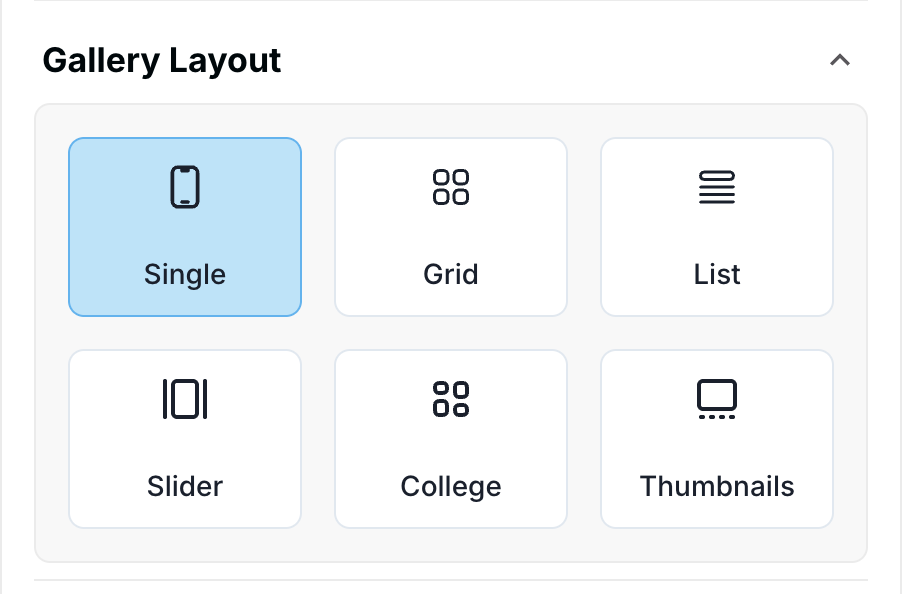
Layout | Controls the visual arrangement of multiple videos. | Choose different types of layouts, such as grid, slider/carousel, or single player view modes. |
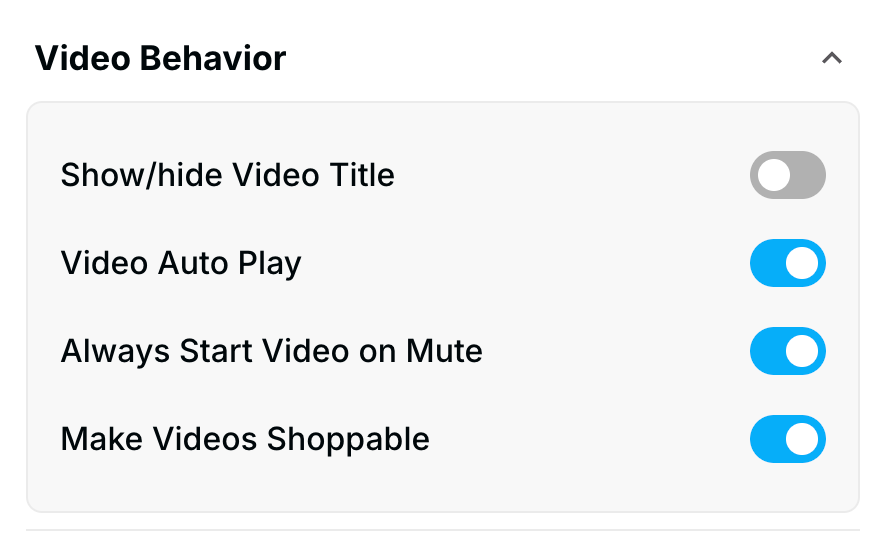
Video Behavior | Defines automatic playback and player features. | Set video auto play and the option to always start video on mute. Enable the setting to make videos shoppable (linking video content to promotional offers). |
Player Settings | Customizes the video player interface. | Set player view modes, position, and icon style. |
Style Tab: Visual Customization
The Style section allows you to customize the widget's aesthetic elements:
Headings: Customize the heading background color, font size, font weight, and text color.
Borders: Control the corner radius, border color, border style, and border width of the container or video cards.
Advanced Tab: Final Refinements
The Advanced tab is for final display control and custom code integration:
Device Setting: Select the specific devices (Desktop or Mobile) where the widget should be visible.
Custom CSS: Input custom CSS code for advanced styling not covered by the standard options.
Publishing Your Configured Widget Live
This following documentation section provides the final, detailed steps required to publish your fully configured widget and make it visible to customers on your live storefront.
01. How to successfully setup a widget
02. Understanding and Creating Audiences
03. Creating Placements and Zones
05. Displaying Your Widgets on the Storefront